Find a Service Account (MSA) in AD - Hidden Accounts

Find a Service Account (MSA) in AD - Hidden Accounts
Are you searching for an account in AD but can’t find it? It might be a Managed Service Account (MSA). Here’s how to locate it!
A Little Theory About Services and MSAs
A service has a primary security identity that determines access rights to local and network resources. The security context of a Microsoft Win32 service is determined by the service account used to start the service. Generally, you use a service account to:
- Identify and authenticate a service.
- Successfully start a service.
- Access or execute code or applications.
- Start a process.
Depending on your use case, you can use a Managed Service Account (MSA), a computer account, or a user account to run a service. You should first test the service to confirm it can use an MSA. If the service supports MSAs, best practices recommend using one.
The main advantage of an MSA is that its password is fully managed by AD, requiring no manual action. The password remains unknown to you.
Source: https://docs.microsoft.com/en-us/azure/active-directory/fundamentals/service-accounts-on-premises
The Problem
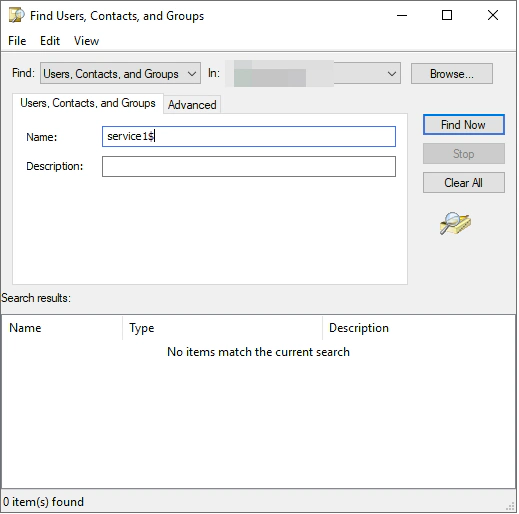
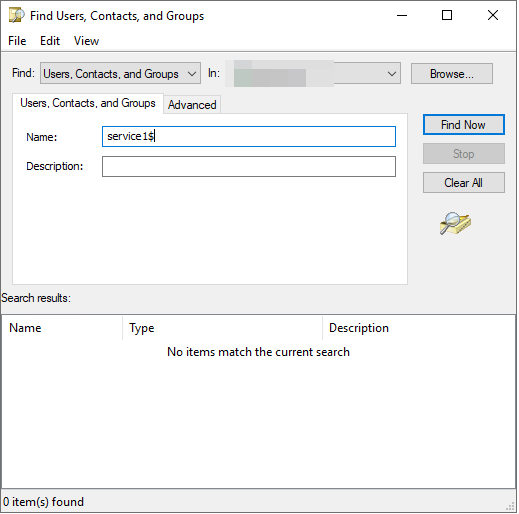
An AD service account with a SamAccountName ending in “$” is hidden. You won’t find it with a simple search like this:
The Solution
To find this account, you can use PowerShell. Here’s an example of the command to execute:
PS C:\> Get-ADServiceAccount -Identity service1

Enabled           : True
Name              : service1
UserPrincipalName :
SamAccountName    : service1$
ObjectClass       : msDS-ManagedServiceAccount
SID               : S-1-5-21-159507390-2980359153-3438059098-29770
ObjectGUID        : eaa435ee-6ebc-44dd-b4b6-dc1bb5bcd23a
HostComputers     :
DistinguishedName : CN=service1,CN=Managed Service Accounts,DC=contoso,DC=com
Since it’s accessible via PowerShell, you can also manage it via PowerShell, such as adding it as a member of a group.
I hope this article was helpful!
Enjoy! 👨💻